
If you’ve ever tried to send a well-formatted table from a Snowflake Alert to a Microsoft Teams channel, you’ve probably hit a wall of silent failures and inexplicable rendering quirks. This post documents what actually works and what doesn’t, including several “obvious” fixes that LLMs will confidently suggest that simply do not work.
The Setup: Snowflake Alerts → Teams via Power Automate
The architecture here is straightforward:
- A Snowflake Alert runs on a cron schedule and evaluates a condition
- When the condition fires, the alert action calls
SYSTEM$SEND_SNOWFLAKE_NOTIFICATION - Snowflake sends an HTTP POST to a Power Automate HTTP trigger URL
- The Power Automate flow forwards the payload to a Teams channel
Step 0: Set Up the Power Automate Flow
As of 2025, Microsoft is retiring the classic Office 365 “Incoming Webhook” connectors in Teams in favor of Power Automate Workflows, with legacy connector URLs scheduled to stop working after the March 31, 2026 migration deadline.
Standing up the replacement Workflow takes about three clicks:
- In Teams, hover the target channel, click More options (⋯), and choose Workflows.
- Pick the template “Post to a channel when a webhook request is received”, click through Next, confirm the team and channel, then click Add workflow.
- Copy the generated URL Teams hands back. That full URL (including its
sig=parameter) is what you’ll wire into the steps below.
Step 1: Store the Webhook Secret
Power Automate HTTP trigger URLs contain a sig= query parameter that acts as a shared secret. Store it in a Snowflake Secret object:
USE ROLE ACCOUNTADMIN;
CREATE SECRET ADMIN.ALERTS.TEAMS_WEBHOOK_SIG  TYPE = GENERIC_STRING  SECRET_STRING = 'your-sig-value-here';
Step 2: Create the Notification Integration
The integration wires together your webhook URL, the secret, and the body template. The body template is a JSON string with the placeholder SNOWFLAKE_WEBHOOK_MESSAGE where your content will be substituted.
CREATE OR REPLACE NOTIFICATION INTEGRATION teams_my_alerts  TYPE = WEBHOOK  ENABLED = TRUE  WEBHOOK_URL = 'https://your-tenant.environment.api.powerplatform.com/powerautomate/automations/direct/workflows/abc123/triggers/manual/paths/invoke?api-version=1&sp=%2Ftriggers%2Fmanual%2Frun&sv=1.0&sig=SNOWFLAKE_WEBHOOK_SECRET'  WEBHOOK_SECRET = ADMIN.ALERTS.TEAMS_WEBHOOK_SIG  WEBHOOK_BODY_TEMPLATE = '{"type":"message","attachments":[{"contentType":"application/vnd.microsoft.card.adaptive","contentUrl":null,"content":{"$schema":"http://adaptivecards.io/schemas/adaptive-card.json","type":"AdaptiveCard","version":"1.2","body":[{"type":"TextBlock","text":"SNOWFLAKE_WEBHOOK_MESSAGE","wrap":true,"size":"Small"}]}}]}'  WEBHOOK_HEADERS = ('Content-Type' = 'application/json');
GRANT USAGE ON INTEGRATION teams_my_alerts TO ROLE LOADER;
CLI gotcha: If you’re using the Snowflake CLI (
snow sql), the&sp=and&sv=parameters in the Power Automate URL will be mis-parsed as client-side template variables. Always add--enable-templating NONEto yoursnow sqlcommand when this URL appears in your SQL.
Step 3: Create the Alert
USE ROLE LOADER;
CREATE OR REPLACE ALERT ADMIN.ALERTS.MY_ALERT  WAREHOUSE = MY_WH  SCHEDULE = 'USING CRON 0 8,13 * * * America/New_York'  IF (EXISTS (SELECT 1 FROM MY_TABLE LIMIT 1))  THEN    CALL SYSTEM$SEND_SNOWFLAKE_NOTIFICATION(      SNOWFLAKE.NOTIFICATION.TEXT_PLAIN('Hello from Snowflake!'),      SNOWFLAKE.NOTIFICATION.INTEGRATION('teams_my_alerts')    );
If you need to update the action later:
ALTER ALERT ADMIN.ALERTS.MY_ALERT SUSPEND;ALTER ALERT ADMIN.ALERTS.MY_ALERT MODIFY ACTION <new sql here>;ALTER ALERT ADMIN.ALERTS.MY_ALERT RESUME;Note that the syntax is MODIFY ACTION <sql>: there is no THEN keyword. Every LLM will write MODIFY ACTION THEN CALL ... and it will fail with a syntax error.
The Real Problem: Formatting a Multi-Row Table
A simple ping works great. The trouble starts when you want to display something useful, like a status table:
Status Mappings Files──────────────────────────────────────────────Not Mapped / Not Ready 0 12Awaiting Approval 97 1006Approved 7 120Ingested 2 15You have two problems to solve:
- The font size: Teams sometimes renders the first line of a TextBlock in a large, bold heading-like style
- The column alignment: your carefully padded spaces disappear
Here’s where the LLM suggestions go off the rails.
What LLMs Suggest (And Why It Doesn’t Work)
❌ Markdown Headers
Ask an LLM how to make a bold header in a Teams Adaptive Card and it will probably suggest # My Header in the text field. Teams Adaptive Card TextBlocks do not render Markdown headers. The # character will appear literally.
❌ Adding size: "Small" and weight: "default"
The correct-sounding fix for an oversized header is to explicitly set the font size. But on some messages, Teams appears to override these properties based on message content heuristics. Setting "size": "Small" and "weight": "default" on the TextBlock does not reliably prevent the first line from rendering large and bold.
❌ Two TextBlocks: One for the Header, One for Data
The next suggestion is to split the card into two TextBlocks: a styled header block and a separate data block. This is architecturally correct, but the implementation runs into the newline problem described below, which causes the message to be silently dropped entirely.
❌ ColumnSet for Tabular Data
Ask an LLM to format a table properly and it will reach for Adaptive Card’s ColumnSet element, which is the “right” answer in the spec:
{ "type": "ColumnSet", "columns": [ {"type": "Column", "width": "stretch", "items": [...]}, {"type": "Column", "width": "auto", "items": [...]} ]}In practice, when delivered via a Power Automate incoming webhook to Teams, ColumnSet columns render stacked vertically, not side by side. You end up with each column’s content on its own line, which is worse than no formatting at all.
❌ Using \n as a Line Separator in Text Values
Whether you’re writing SQL with chr(10) or Python with "\n".join(lines), putting actual newline characters in your text (or the JSON escape sequence \n that represents them) is a reliable way to have your message silently dropped by Power Automate.
Here’s why: Snowflake’s webhook delivery pipeline appears to convert the JSON newline escape sequence \n into a literal newline character (chr(10)) before sending the HTTP body. A raw newline inside a JSON string value is invalid JSON. Power Automate receives the malformed body and silently discards it: no error, no delivery.
This is the hardest bug to diagnose because Snowflake reports success (Enqueued notifications) and there is no delivery failure surfaced anywhere. The message simply never arrives. No error message on the Teams side.
The same issue affects SANITIZE_WEBHOOK_CONTENT: it does not escape backslashes, so chr(92)||'n' (backslash + n) passes through unchanged. That’s actually useful for the template-based approach, but the \n → chr(10) conversion during delivery still bites you in other contexts.
❌ Space-Padded Monospace Alignment
The natural approach for a table: use Python or SQL to RPAD/LPAD your columns and join them with spaces, then render in a fontType: "monospace" TextBlock. Teams renders the monospace font correctly, but collapses repeated spaces, even in monospace context. Your carefully aligned columns collapse to single-space separators.
What Actually Works
The Delivery Layer
For simple single-line messages, the SQL template approach is fine:
CALL SYSTEM$SEND_SNOWFLAKE_NOTIFICATION( SNOWFLAKE.NOTIFICATION.TEXT_PLAIN( SNOWFLAKE.NOTIFICATION.SANITIZE_WEBHOOK_CONTENT('Your message here') ), SNOWFLAKE.NOTIFICATION.INTEGRATION('teams_my_alerts'));The SANITIZE_WEBHOOK_CONTENT function escapes <, >, ", ', and ` to prevent injection attacks when the content is substituted into the JSON template. It does not escape backslashes.
For multi-line messages in SQL, use chr(92)||'n' (literal backslash-n) as your line separator and the REPLACE pattern:
SNOWFLAKE.NOTIFICATION.SANITIZE_WEBHOOK_CONTENT( (SELECT REPLACE( 'Line one' || '|NL|' || 'Line two' || '|NL|' || 'Line three', '|NL|', chr(92)||'n' )))The |NL| sentinel is substituted by the literal two-character sequence \n, which when embedded in the JSON template’s text field becomes a valid JSON newline escape that Teams renders as a line break.
The Table Formatting Problem: Python Stored Procedures
The goal is to land an alert in Teams with clean, report-style formatting like this, where the header stands out and the columns actually line up:
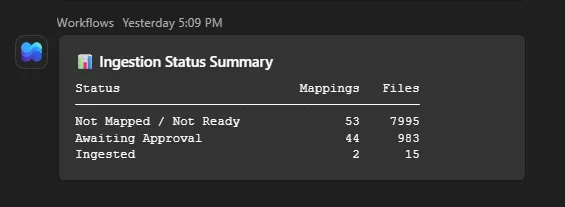
For anything more complex (multi-column tables, dynamic row counts, custom styling), the cleanest solution is a Python stored procedure that builds the full Adaptive Card JSON itself and uses a raw passthrough template.
First, change the integration’s body template to raw passthrough:
USE ROLE ACCOUNTADMIN;ALTER NOTIFICATION INTEGRATION teams_my_alerts SET WEBHOOK_BODY_TEMPLATE = 'SNOWFLAKE_WEBHOOK_MESSAGE';Now the entire HTTP body will be whatever you pass to TEXT_PLAIN. Then create a Python sproc:
CREATE OR REPLACE PROCEDURE ADMIN.ALERTS.SEND_MY_TABLE()RETURNS VARCHARLANGUAGE PYTHONRUNTIME_VERSION = '3.11'HANDLER = 'main'PACKAGES = ('snowflake-snowpark-python')EXECUTE AS OWNERAS $$import json
def main(session):    rows = session.sql("SELECT ...").collect()
    # Non-breaking space; Teams collapses regular spaces even in monospace font    NBSP = ' '
    def row_block(text, spacing="None"):        return {            "type": "TextBlock",            "text": text.replace(' ', NBSP),            "fontType": "monospace",            "size": "small",            "spacing": spacing,            "wrap": False        }
    body = [        {            "type": "TextBlock",            "text": "\U0001f4ca My Report",            "size": "medium",            "weight": "bolder",            "wrap": False        },        row_block(f"{'Status':<28}{'Count A':>10}{'Count B':>8}", spacing="Small"),        row_block("─" * 46),    ]    for r in rows:        body.append(row_block(            f"{r['STATUS']:<28}{r['COUNT_A']:>10}{r['COUNT_B']:>8}"        ))
    message = {        "type": "message",        "attachments": [{            "contentType": "application/vnd.microsoft.card.adaptive",            "contentUrl": None,            "content": {                "$schema": "http://adaptivecards.io/schemas/adaptive-card.json",                "type": "AdaptiveCard",                "version": "1.2",                "body": body            }        }]    }
    # ensure_ascii=False: embed emoji and box-drawing chars as UTF-8,    # avoiding \uXXXX escape sequences that can cause issues    msg_json = json.dumps(message, ensure_ascii=False)    safe_json = msg_json.replace("'", "''")
    session.sql(        f"CALL SYSTEM$SEND_SNOWFLAKE_NOTIFICATION("        f"SNOWFLAKE.NOTIFICATION.TEXT_PLAIN('{safe_json}'),"        f"SNOWFLAKE.NOTIFICATION.INTEGRATION('teams_my_alerts'))"    ).collect()    return "sent"$$;
Two things to notice here:
One TextBlock per row, no newlines. Instead of joining rows with \n and putting everything in one TextBlock, each row is its own TextBlock with "spacing": "None" so they stack tightly. This completely sidesteps the \n → chr(10) conversion issue because json.dumps() on text values without newlines produces zero \n escape sequences.
ensure_ascii=False. Python’s json.dumps() by default encodes all non-ASCII characters as \uXXXX escape sequences. For an emoji like 📊 (U+1F4CA), that produces the surrogate pair 📊. Using ensure_ascii=False embeds characters directly as UTF-8, avoiding any ambiguity about how Snowflake’s pipeline will handle those escape sequences.
Non-breaking spaces ( ). Regular spaces get collapsed by Teams’ renderer even with fontType: "monospace". Non-breaking spaces are not collapsed and preserve your column alignment.
Grant the sproc creation privilege and wire up the alert:
GRANT CREATE PROCEDURE ON SCHEMA ADMIN.ALERTS TO ROLE LOADER;
ALTER ALERT ADMIN.ALERTS.MY_ALERT SUSPEND;ALTER ALERT ADMIN.ALERTS.MY_ALERT MODIFY ACTION    CALL ADMIN.ALERTS.SEND_MY_TABLE();ALTER ALERT ADMIN.ALERTS.MY_ALERT RESUME;
Summary: The Decision Tree
| Goal | Approach |
|---|---|
| Simple single-line message | SQL: TEXT_PLAIN(SANITIZE_WEBHOOK_CONTENT('text')) with template |
| Multi-line plain text | SQL: chr(92)||'n' separator + REPLACE pattern with template |
| Styled header + table | Python sproc: full card JSON, raw passthrough template |
| Column alignment in a table | Python sproc: one TextBlock per row, non-breaking spaces |
| Separate header styling from data | Python sproc: separate TextBlocks in body array |
What to Avoid
chr(10)as a line separator anywhere in the pipeline"\n".join(...)in Python when building content for TEXT_PLAINColumnSetfor tabular data via incoming webhook- Expecting
size: "Small"to prevent Teams from auto-sizing the first line of a message - Forgetting
--enable-templating NONEinsnow sqlwhen your SQL contains Power Automate URLs - Writing
MODIFY ACTION THEN CALL: it’s justMODIFY ACTION CALL
The short version: Snowflake → Teams via Power Automate works well for simple messages. For anything tabular or multi-line, skip the SQL string concatenation and go straight to a Python stored procedure that owns the entire JSON payload. You’ll save yourself a day of debugging silent delivery failures.

About the Author
Jeff is a Data and Analytics Consultant with nearly 20 years experience in automating insights and using data to control business processes. From a technology standpoint, he specializes in Snowflake + dbt + Tableau. From a business topic standpoint, he has experience in Public Utility, Clinical Trials, Publishing, CPG, and Manufacturing. Jeff has unique industry experience in Supply Chain Planning, Demand Planning, S&OP. Hit the chat button to start a conversation!
